
QR Cube 1.0.0 tutorial: scan QR codes, make a Wi‑Fi QR code and a QR business card on Android
This guide follows the real QR Cube 1.0.0 interface. By the end you will be able to:
- Scan QR codes and barcodes with the camera or from a photo
- Make a Wi‑Fi QR code so guests can join your network with one scan
- Create an EAN‑13 product barcode and fix a wrong check digit
- Build a QR business card that others scan to save your contact
- Favorite, pin and rename the codes you use most
Which version this covers
This tutorial is for 1.0.0, the first official release of QR Cube: free, no ads, no sign-in. The site only had a preview before, so there is no older package to upgrade from. If you are switching from another scanner app, its history cannot be imported into QR Cube; keep anything you need in the old app.
Before you start
- An Android phone running Android 8.0 or later
- Open the QR Cube product page, download the APK from Download 1 or Download 2 and install it (Android may ask you to allow installs from your browser or file manager)
- On first launch, swipe through the 3 intro pages, then you land on the main screen
- The bottom bar has 5 tabs: Scan, Create, My Card, Favorites, History. The gear icon at the top right opens Settings
Step 1: Scan a code
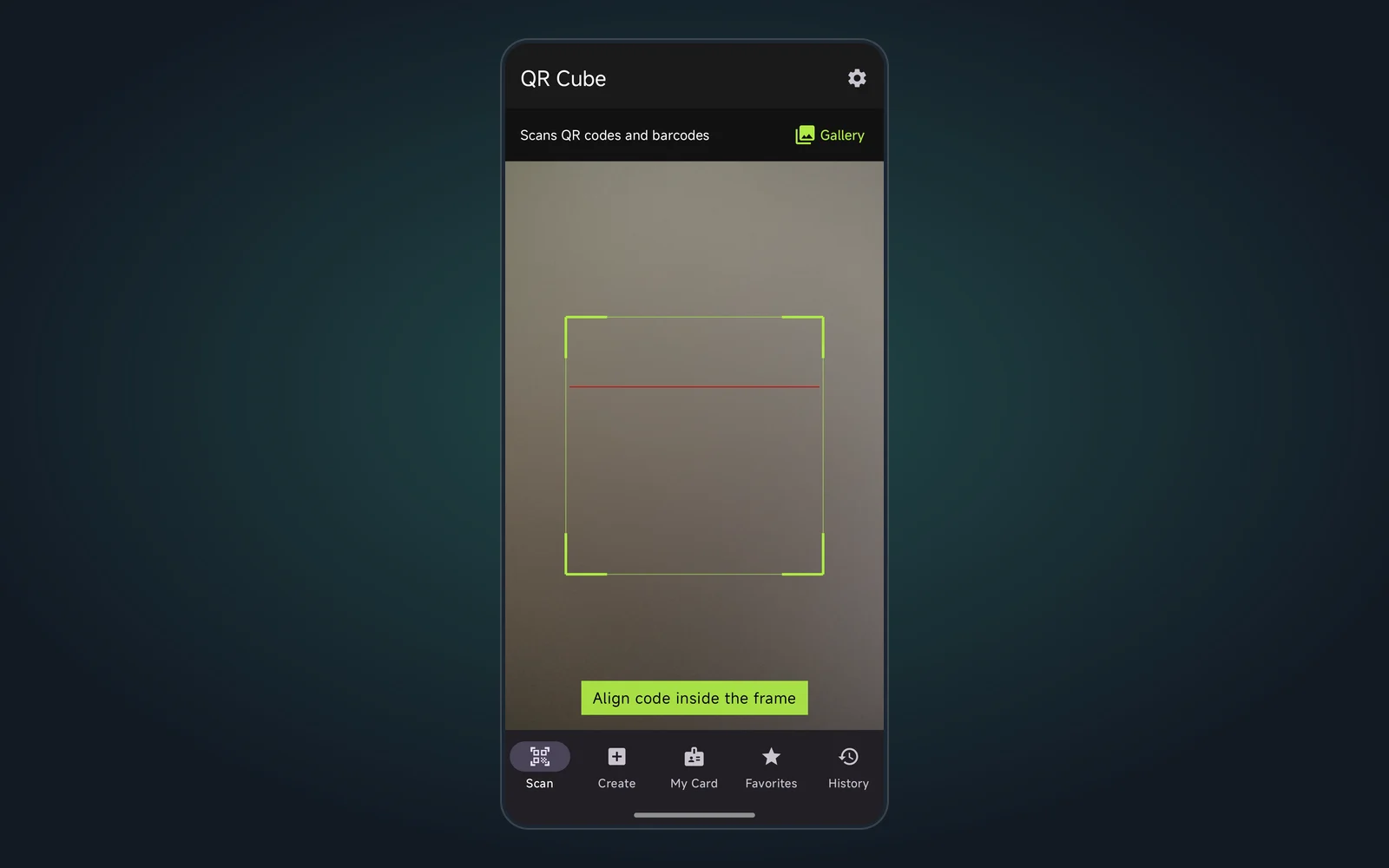
- Open the Scan tab. The first time, Android asks for camera permission; allow it. If you denied it earlier, a Grant permission button appears.
- Fit the QR code or barcode inside the frame. On a match the phone vibrates, beeps and opens the detail page.
- To decode a picture on your phone, tap Gallery at the top right of the Scan tab and pick an image.
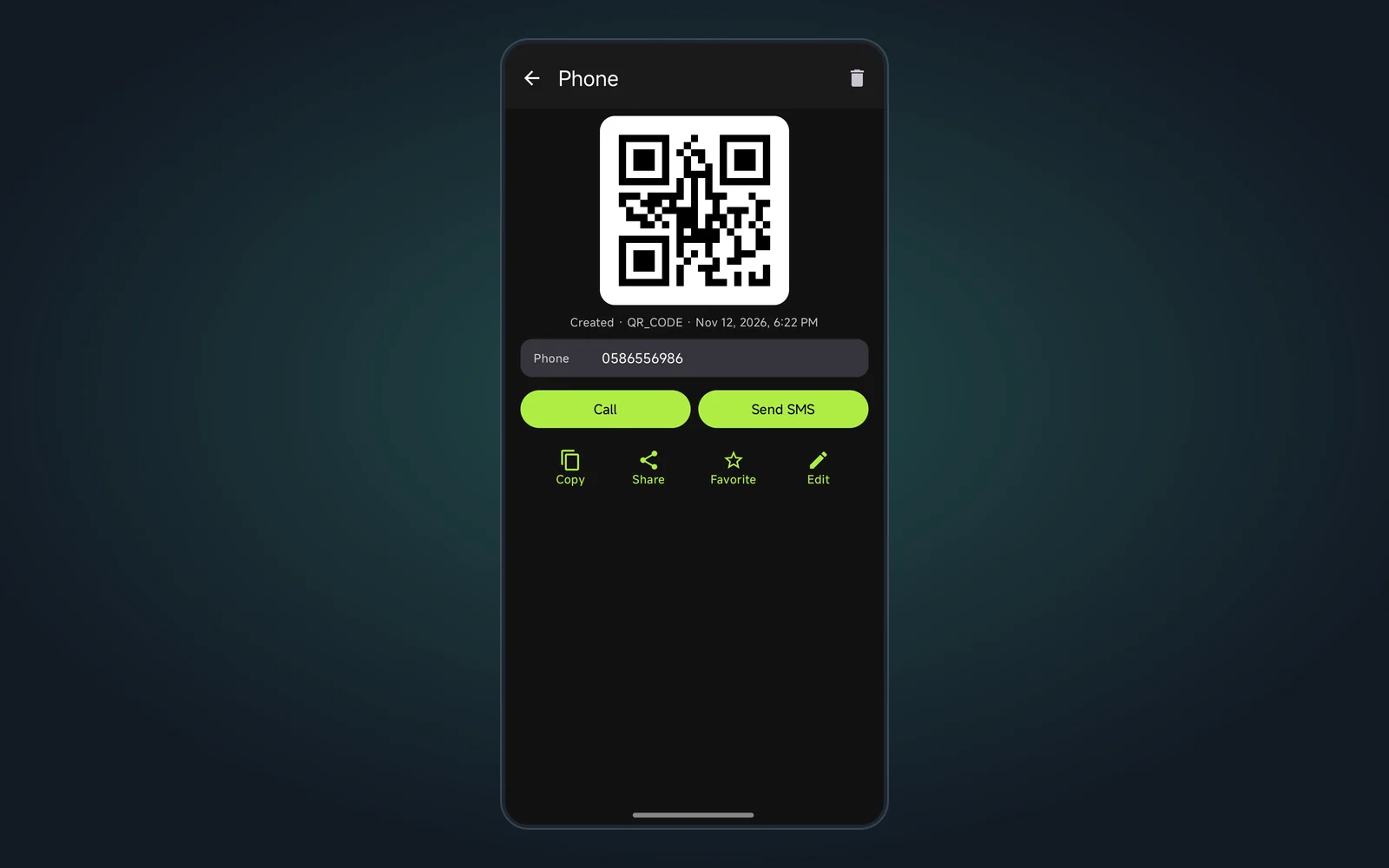
The detail page shows the crop of the code you scanned, its type and the decoded content, plus actions based on that content: Open link for URLs, call for phone numbers, Copy Wi‑Fi password for Wi‑Fi codes, add to contacts for vCards. Every scan is saved to the History tab automatically.
Step 2: Make a Wi‑Fi QR code
- Open the Create tab and stay on New.
- Under QR Code, tap Wi‑Fi.
- Fill in:
- SSID: the network name, required. Match the capitalization on your router
- Security: home routers usually use WPA/WPA2; pick None for open networks
- Password: the Wi‑Fi password
- Tap Generate. Share it to print, or favorite it for later.
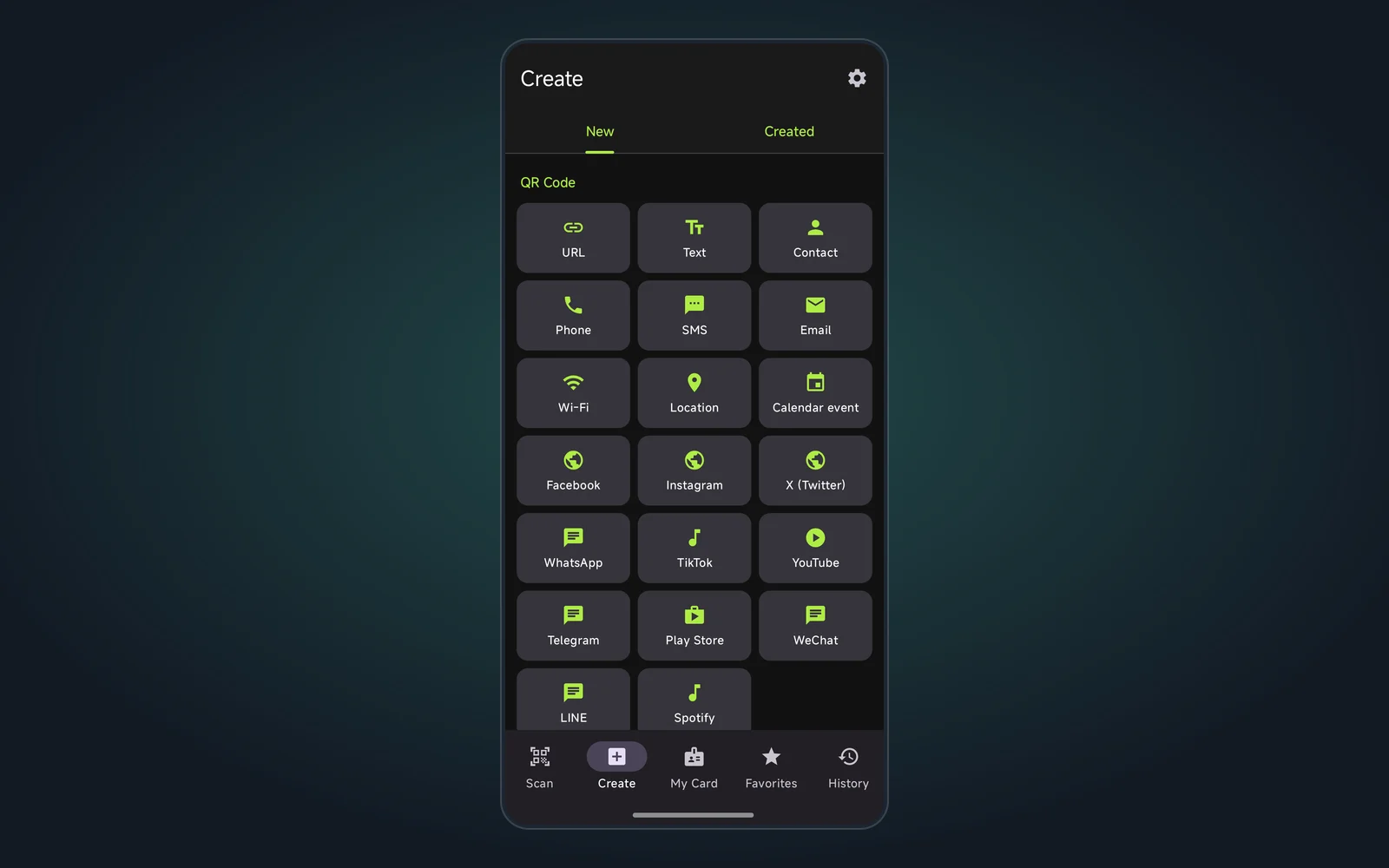
Guests scan it with their camera or any scanner app and join the network directly. Links, text, phone, SMS, email, location, calendar events and social accounts work the same way: pick a type, fill in the form, generate.
Step 3: Create a product barcode
- Create → New, scroll down to Barcode and tap EAN-13.
- Enter 13 digits in Barcode data and tap Generate.
- If you see “Invalid check digit (expected X)”, the last digit is wrong. Replace it with the number shown.
Rules for the other formats:
| Format | What to enter |
|---|---|
| EAN‑13 / EAN‑8 / UPC‑A | A fixed number of digits; the last one is the check digit |
| UPC‑E | 6–8 digits |
| ITF | An even number of digits |
| Code 39 | Uppercase letters, digits and a few symbols |
| Code 128 / Code 93 / Codabar | Follow each symbology’s rules |
Everything you generate is listed under Create → Created, where you can open, edit or delete it from the menu.
Step 4: Make a QR business card
- Open My Card. The first time you see an empty form.
- Fill in your Name (required), plus phone, email, address and organization, then tap Generate card.
- The card shows your name, organization, contact details and one large QR code with the hint “Scan to save this contact”.
- Let people scan it with their phone camera, or tap Share to send it. Tap Edit card to change the details.
Step 5: Favorite, pin and rename
- On a detail page, tap Favorite to add it to the Favorites tab.
- In Favorites, open the More menu on the right of an item:
- Pin to top: keeps it at the top; the most recently pinned comes first
- Rename: for example “Office Wi‑Fi” or “Parking”. Leave it empty to restore the default name
- Unfavorite
- History lists every scan, newest first. Delete an item from its menu; its crop is deleted too.
Troubleshooting
| Problem | Fix |
|---|---|
| Scan tab is black or asks for camera permission | Tap Grant permission, or enable Camera in Android Settings → Apps → QR Cube → Permissions |
| Nothing happens when pointing at a code | Keep the whole code inside the frame and move to better light; get closer to small, glossy or creased codes |
| “No code found” from a photo | Use a sharper image with the full code visible |
| Open link or call does nothing | A matching app (such as a browser) is missing or disabled; install or enable it, or tap Copy instead |
| “Need N digits” when creating a barcode | Enter the full length for that format; EAN‑13 needs 13 |
| Want a light theme or another language | Settings → Theme / Language |
One more thing: QR Cube stores records only on your phone, so uninstalling the app deletes all of them.
Next steps
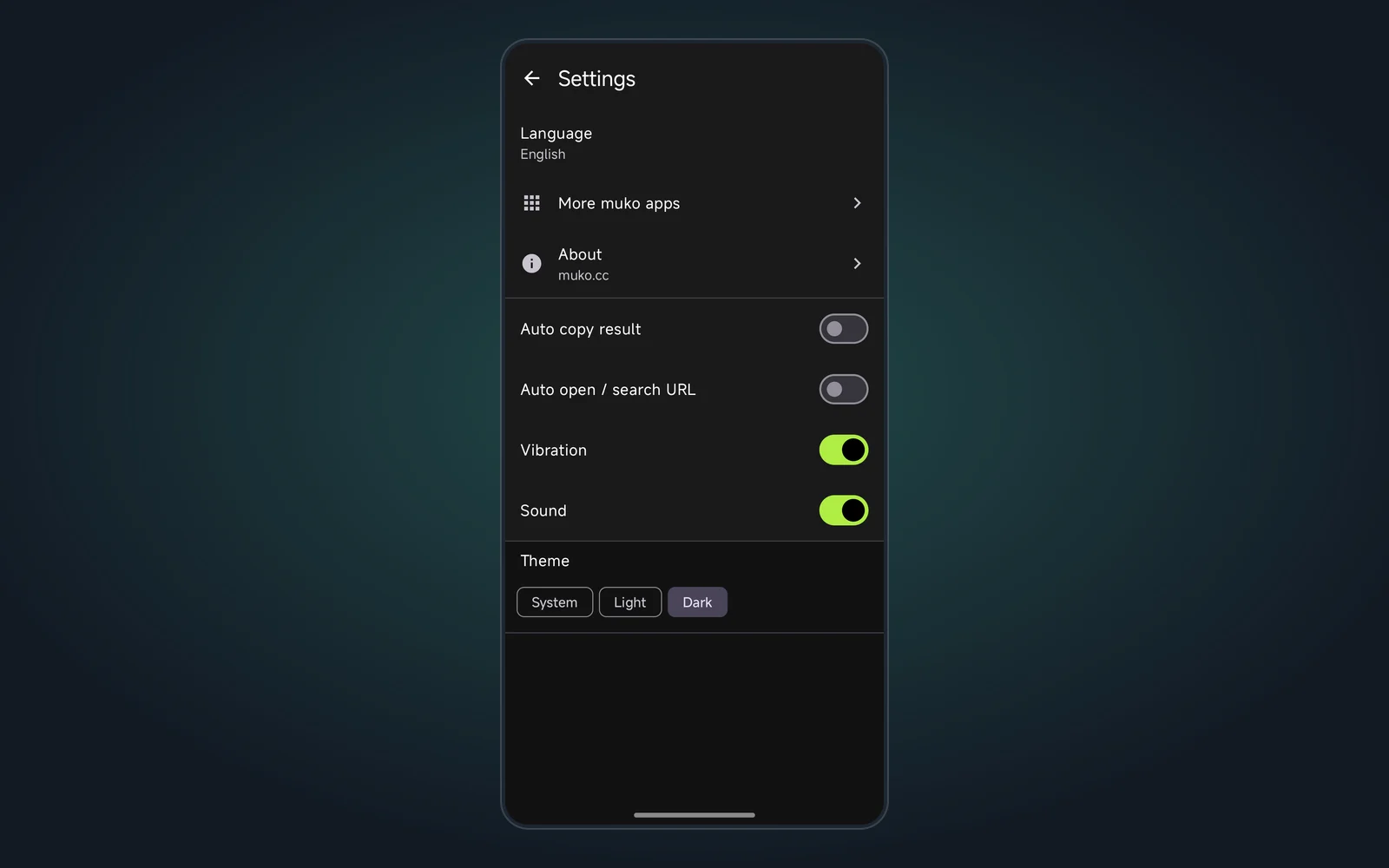
In Settings you can turn on Auto copy result or Auto open / search URL (both off by default) and toggle vibration and sound. To see other muko tools, open Settings → More muko apps; it only opens the website and never downloads anything on its own.
Not installed yet? Get 1.0.0 from the QR Cube product page. For an overview of what this release includes, read the QR Cube 1.0.0 release post.
Made by muko · https://muko.cc/