
How to use Turno: convert a file on Windows without uploading it
Turno is muko’s converter for Windows. Drop a file on the window, or hold a modifier and drag it in File Explorer, and the quick panel opens at the cursor. The work stays on your PC. Nothing is uploaded. This guide matches version 2.4.0.
Before you start
- You need Windows 10 or Windows 11, 64-bit.
- Download it from the Turno product page. On this page, Download 1 is the installer and Download 2 is the second address.
- After setup, About shows the name Turno, version 2.4.0, author muko, and a link to muko.cc.
- This version is free, shows no ads, and does not ask you to sign in.
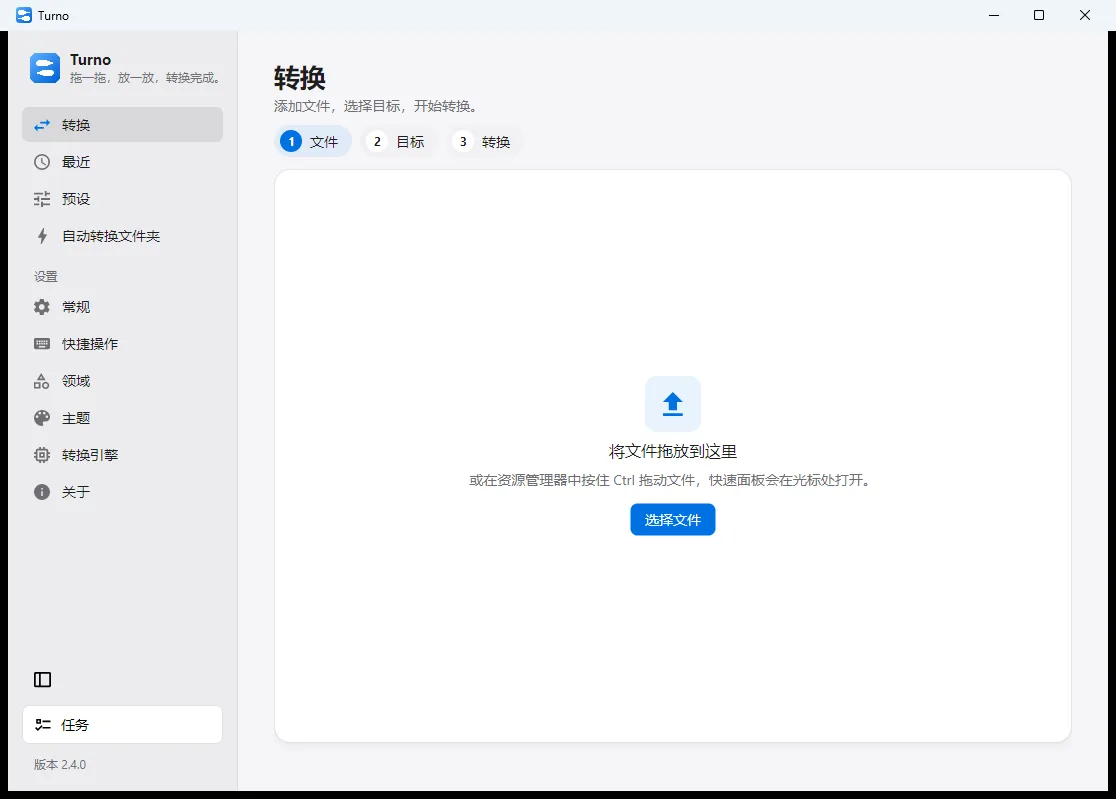
Convert in the window
- Open Turno. Convert is selected on the left.
- Drop files onto “Drop files here”, or choose them. The steps are File, Target, then Convert. This batch is kept in a list, so you can change the order before you start.
- Pick a target format and start.
- The new file is written where that conversion says to put it. Recent lists the result so you can open it again.
Common image conversions work as soon as Turno is installed.
Convert from File Explorer
When you do not want to open the window first:
- Select the files in File Explorer.
- Hold the modifier and drag. Ctrl is the usual modifier; the one that applies is the one you set under Shortcuts.
- The quick panel opens at the cursor and lists only formats an installed engine can actually finish.
- Pick one. The conversion starts.
Pictures, documents, PDFs, and media
Word, heavier PDFs, and audio or video need the matching engine under Engines, or Use my program if that software is already on the PC.
- Split a PDF. After you drop it, type a page range such as
1-3, 8. - Merge PDFs. They merge in the list order. Bookmarks, links inside the document, and form fields are kept.
- Add a background. Choose that action to put a picture on a gradient, a flat colour, or another picture, with padding, rounded corners, and a shadow.
- Enlarge a picture. Up to 4×, on this computer. It needs its own engine and a Vulkan graphics device. You can see the new size before you start.
Pictures in HTML and Markdown are read only from that document’s folder. Links to somewhere else on the PC or on the network are not followed. An archive that would unpack to an unreasonable size is refused, so it cannot fill the disk.
Shortcuts
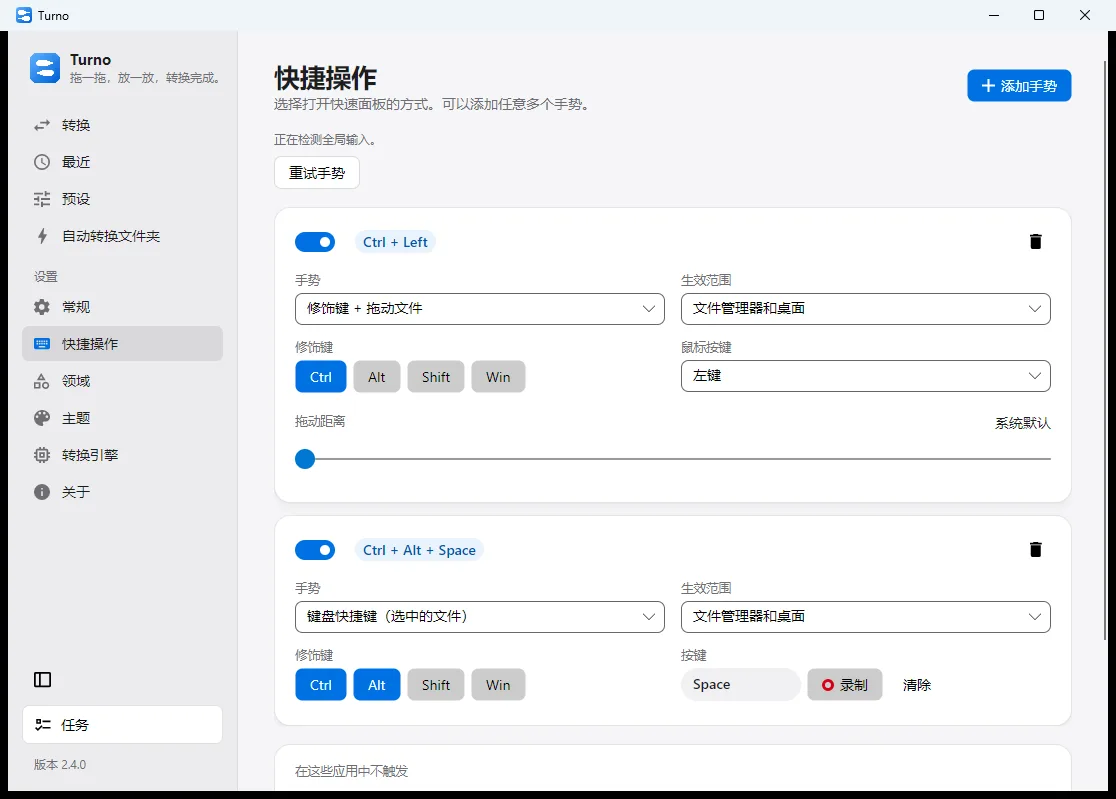
Open Settings → Shortcuts, then add a gesture. You can open the quick panel in a few ways:
- A modifier plus dragging a file, including how far you must drag.
- A keyboard shortcut for files already selected in File Explorer.
- Files taken from the clipboard.
- A list of apps where the gesture should not fire.
You can add more than one gesture, and switch each one on or off.
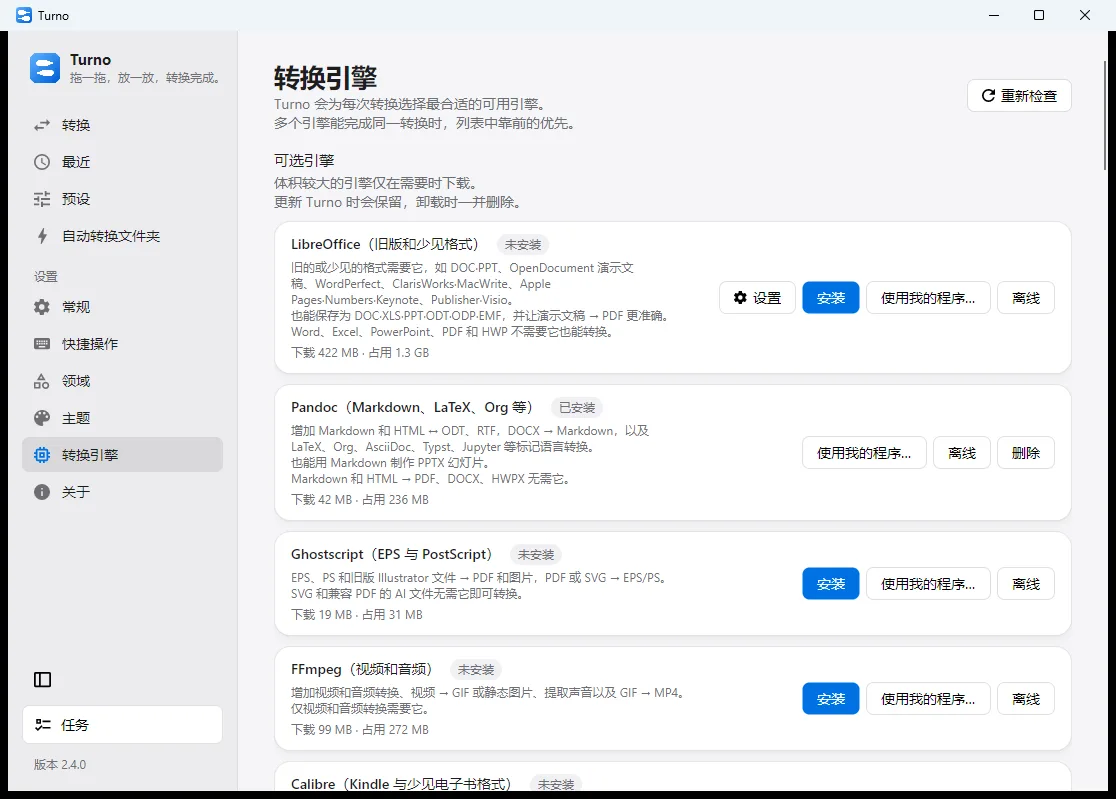
Engines
Open Engines. Turno picks an engine that can finish this job. When more than one can, the one higher in the list wins. Drag a card to change that order.
Large engines — LibreOffice, Pandoc, Ghostscript, FFmpeg, Calibre, and others — download only after you choose Install. Use my program points at software you already have. They are not packed into the Turno setup. If this PC is offline, use Offline → install from files you already downloaded.
Presets and watched folders
Presets stores a target format and output choices so you do not set them again. Watch folders watches a folder and converts files you put there, using the rule you set.
Download
Open the Turno product page and check that the version is 2.4.0 before you download. Turno is from muko, at https://muko.cc/.